


How to integrate Zoho CRM with Magento 2?
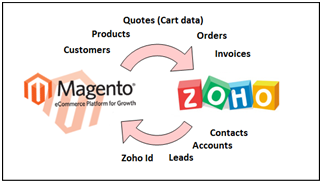
If you are looking for ways to collect information and customer data from your Magento 2 store then you must integrate Zoho CRM with your Magento 2. Zoho CRM will help you in attracting more customers for your store.
Just in case you don’t know much about Zoho CRM.

It’s a CRM service which creates a customer tracking system for employees. Marketing and sales department can use Zoho CRM to understand customer behaviour.
In addition, you can also integrate all your customer data from your Magento 2 warehouse into the Zoho CRM platform which will make it easier for you to access these data to view each customer as well analze the detail about that particular customer. Hence, this will lead to better decision making for your marketing campaigns.
Today, in this article, we will guide you on how to integrate Zoho CRM on Magento 2.
How to integrate Zoho CRM on Magento 2
To integrate Zoho CRM
- Step 1: Sign up the Zapier account
- Step 2: Sign up the Zoho CRM account
- Step 3: Integrate Magento 2.x
- Step 4: Integrate Zoho CRM into this step to get all information from you Magento 2.x store.
Step 1: Sign up the Zapier account
- Signup Zapier
Step 2: Sign up the Zoho CRM account
- Signup Zoho
- When you log in into Zapier, select Make a Zap to start integrating.
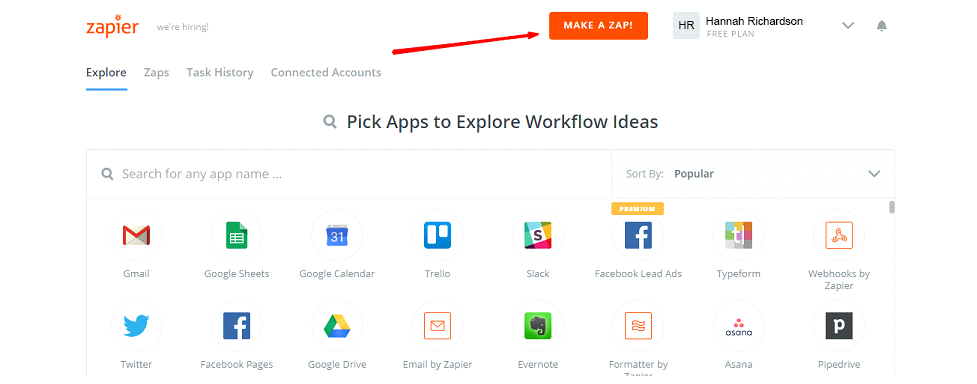
Step 3: Integrate Magento 2.x
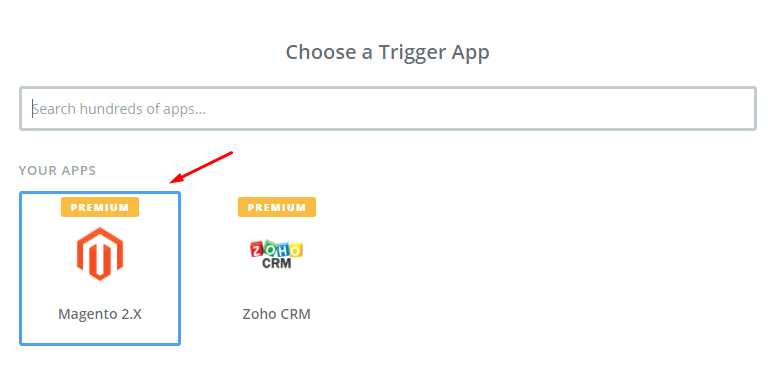
- In this set up step, choose a Trigger App that you want to integrate with your Magento 2 store.
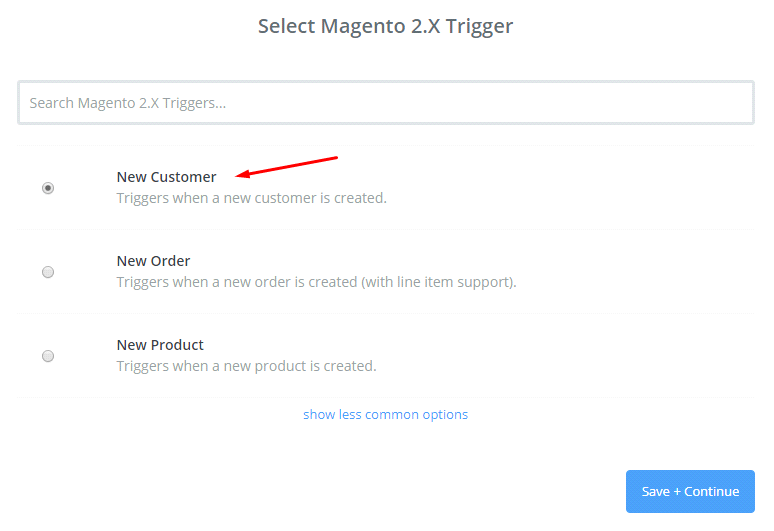
- Next, select Magento 2.x Trigger in the drop-down list such as new customer, then save + continue
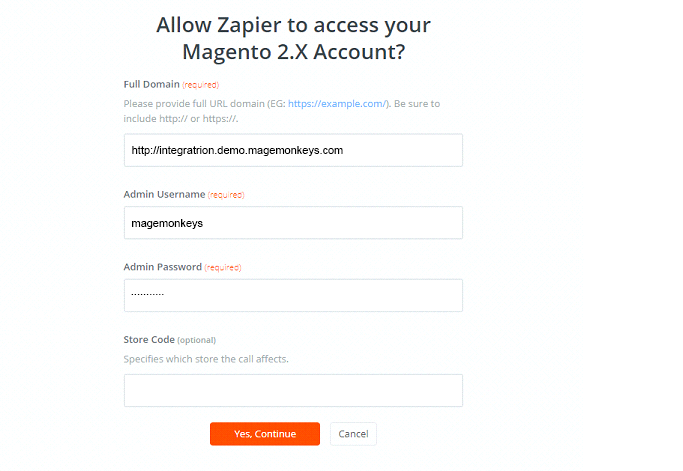
- Here, you have to connect an account to select Magento 2.x Account so enter full domain, admin username and admin password of your Magento 2.x store as an image below:
- After generating your Magento 2.x account, the screen will display as the following image, and click on Save + Continue:
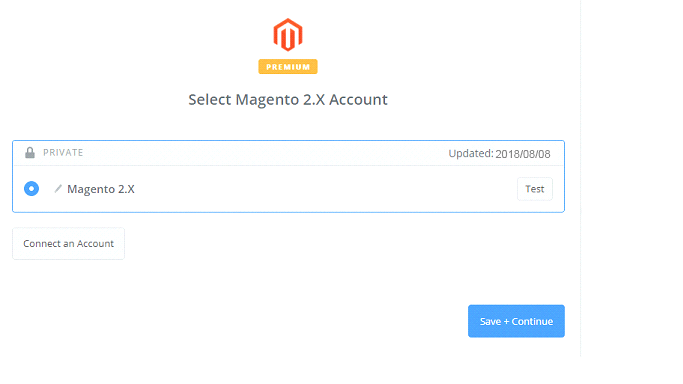
- Wonderful, you have successfully tested Magento 2.x. Please continue doing the next step.
Step 4: Integrate Zoho CRM
- In this step, Choose an Action Appfield, select Zoho CRM
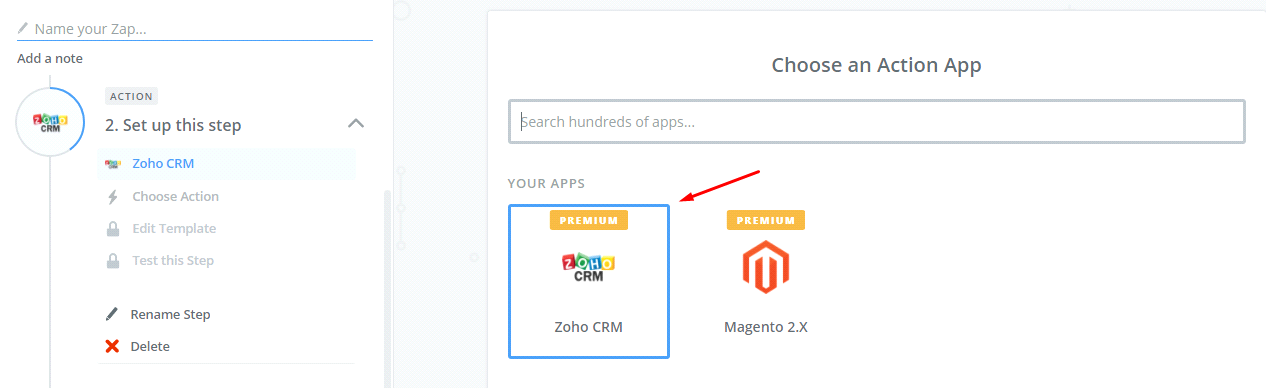
- After that, select Zoho CRM action to as a new contact and click on Save + Continue:
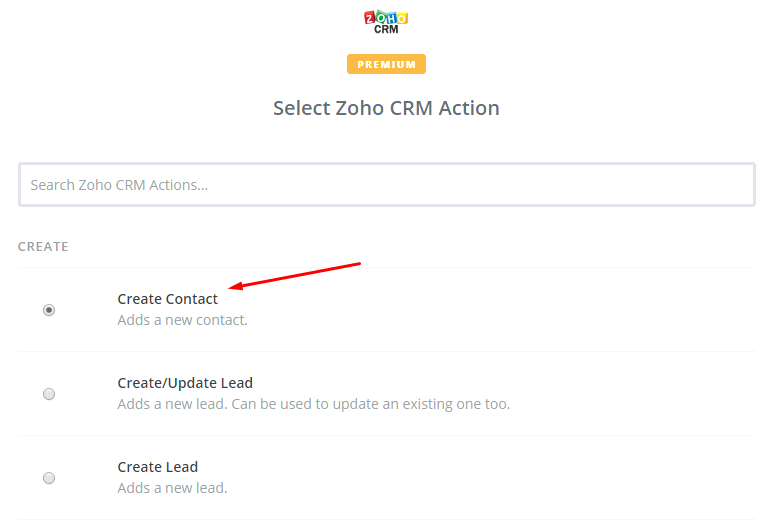
- Next, you need to select Zoho CRM account by the way: Click on Connect an Account and follow the guide:
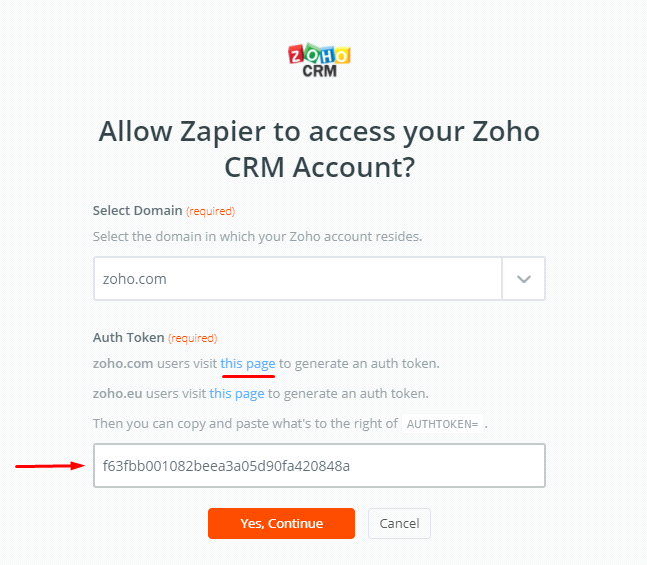
- In this step you set up template for that Set up Zoho CRM contact, you need to enter all information that includes in that, then, choose Continue box.
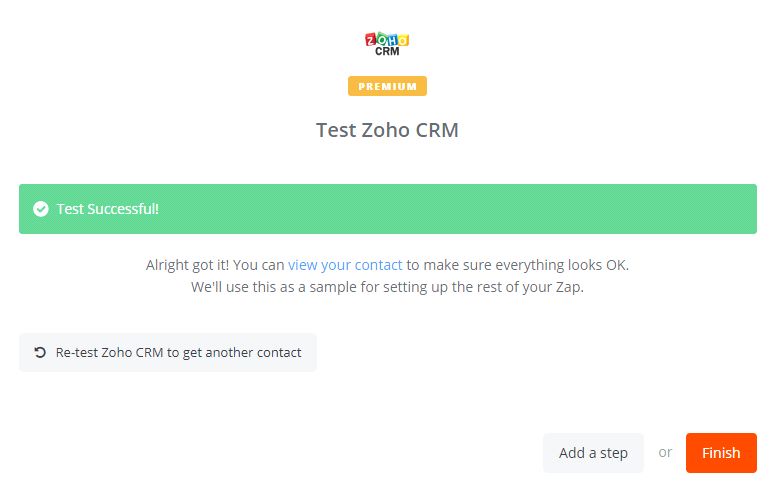
- Now, you have tested Zoho CRM sucessful. Finally, choose Finish and set the name your zap to complete.
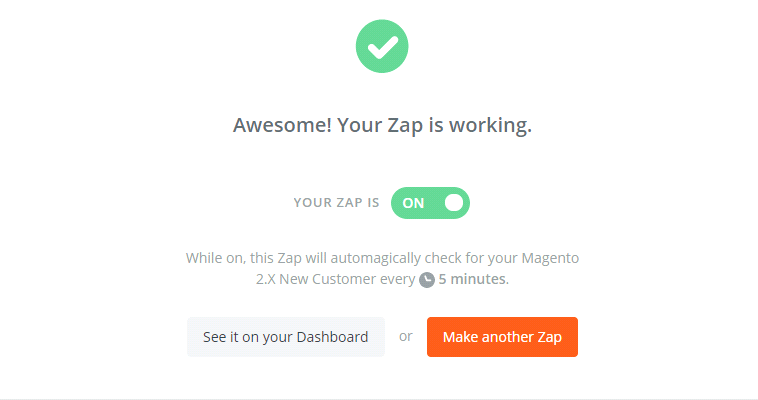
- Your Zap is working and from now onwards it will auto-check for your Magento 2.x new customer.
- After all, here is the file that you have just established.
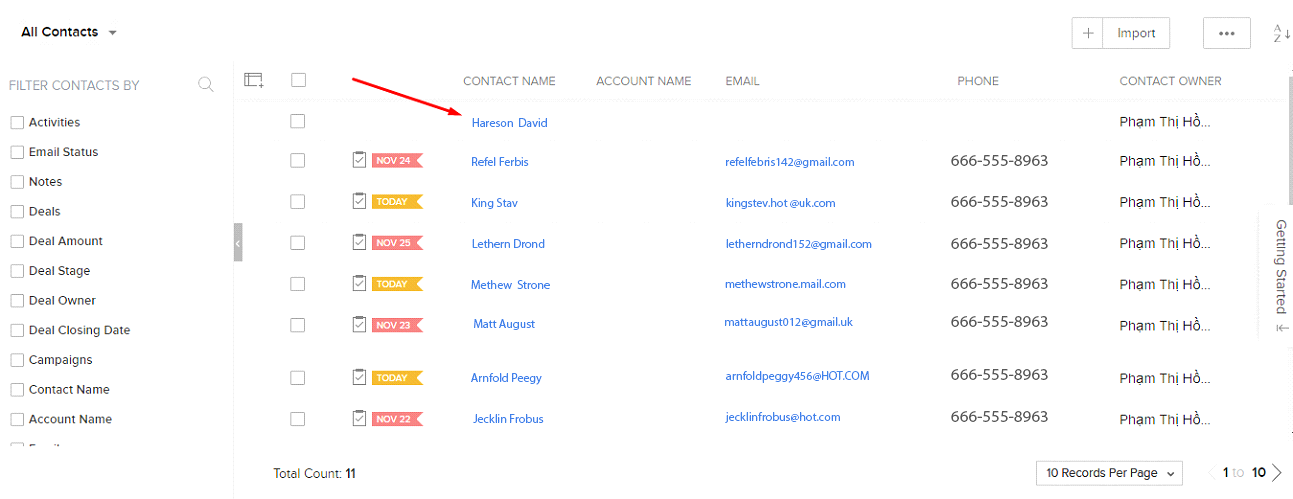
So, in this way we integrate Zoho CRM with Magento 2 and now it’s time for you to try these steps for easy integration to uplift your sales.
Fill the form below if you need any kind of Magento consultancy service.